Showing posts with label PC. Show all posts

Thursday, May 24, 2012

How To Fix Multiple Networks at Startup But No Internet Access

Can't connect to the internet because it's showing as being connected to multiple networks? A Home network and an Unidentified network.  When you facing this problem, just follow this tutorial.

Apparently there is an Apple program called "Bonjour Services" it is installed in Windows 7 with programs like iTunes. It is also installed with Adobe PS3 programs but usually shows up as ##Id_String1.6844F930_1628_4223_B5CC_5BB94B879762## in Adobe.

To see if you have the Bonjour service or ##Id_String1.6844F930_1628_4223_B5CC_5BB94B879762## running on your PC.

1. Click Start Right-click "Computer" and select "Manage".
2. Expand "Services and Applications" -> "Services".
3. Find the Bonjour name or ##Id_String1.6844F930_1628_4223_B5CC_5BB94B879762## in the list of services.
4. Double-click this to open up a Window.
5. Under the General Tab next to Start-up Type Select Disabled from the drop down.
6. Finish!

Now test and see if you still have connectivity issues. Good luck!


credit: w7forum.com

Sunday, March 25, 2012

How To Delete Windows.Old Folder

After finished installing you new windows OS, it will leave a folder named as Windows.Old. It is also used a big size of your hard drive. You cannot easily delete it. So, follow this instructions.

STEP TO DELETE WINDOWS.OLD

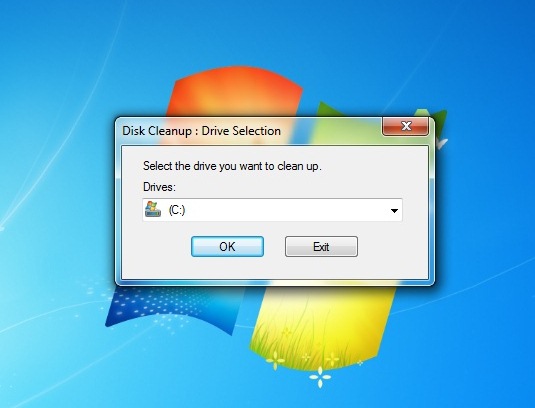
1. Open Disk Cleanup program. Go to Start Menu >> All Programs >> Accessories >> System Tools >> Disk Cleanup


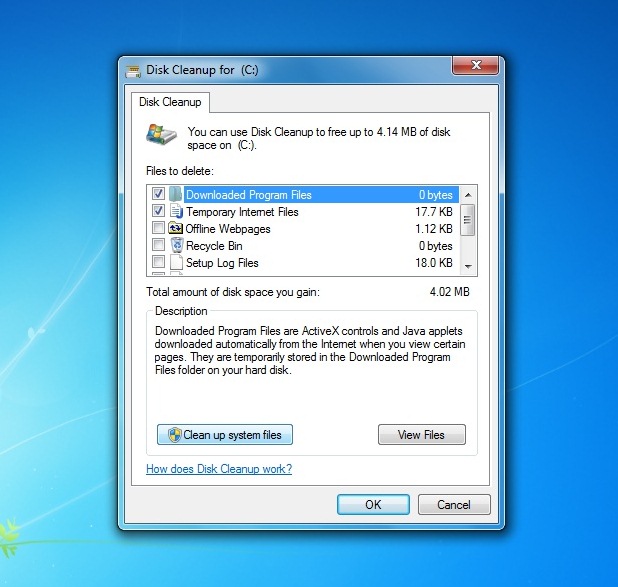
2. Then, click Clean up system files >> Ok


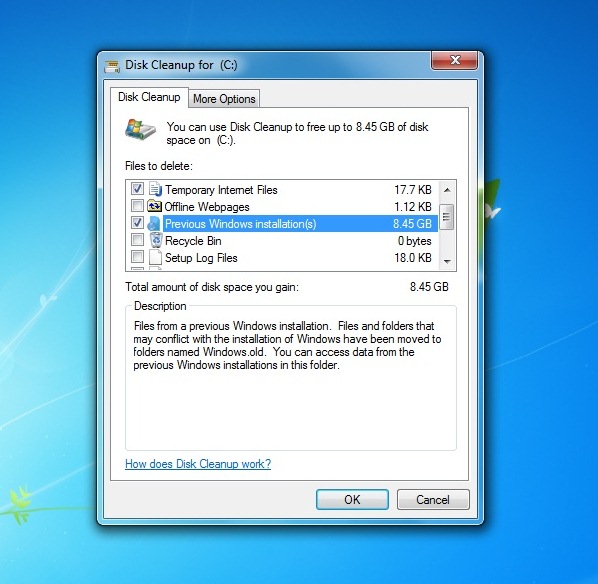
3. After that, check Previous Windows Installation(s), then click Ok.


4. Just wait til' finish.

Now, folder Windows.Old is deleted. :)

Saturday, February 18, 2012

How To Change Back .lnk Files to Normal

The .lnk file extension refers to a shortcut link on your computer, not the actual file. This occurs when you upload the document while the file is still open or if you load the file from the Recent Files folder instead of My Documents, My Computer, or the Desktop. 


This problem make you uncomfortable to use your computer. So let's fix it now.

METHOD #1
1. Open the Registry Editor (click Windows + R, type regedit, hit enter).

2. Navigate to this registry branch:

HKEY_CURRENT_USER\Software\Microsoft\Windows\CurrentVersion\Explorer\FileExts\.lnk

3. Find the subkey called User Choice and delete it.

4. Close Registry Editor.

5. Reboot your PC.


or METHOD #2
Just run this tool to fix it automatically;

#Window 7
#Windiws Vista


No more .lnk files. Enjoy guys! =)

Saturday, February 11, 2012

Change Your Folder To Any Color in Windows Explorer

Windows Explorer is too boring? Folder Colorizer is a nifty little software that add colorize functions to any folders in Windows explorer. Color it up! Assign any color to any folder – just right-click a folder and choose “Colorize”! Supports your own colors, labels and works seamlessly with any version of Windows.


HOW TO APPLY
• Right click on any folders > select Colorize > Yellow, Lawn Green, Red, Blue, Silver, Violet, Sandy Brown or Aquamarine.

• You can also choose other colours that are not enabled by default. You also can pick your own color by select Color...

Folder Colorizer is compatible with Windows XP, Vista and 7. It also works up to Windows 8 Developer Preview.

DOWNLOAD: Folder Colorizer

Credits: Softorino

Saturday, August 14, 2010

How To Save as PDF With Microsoft Office 2007

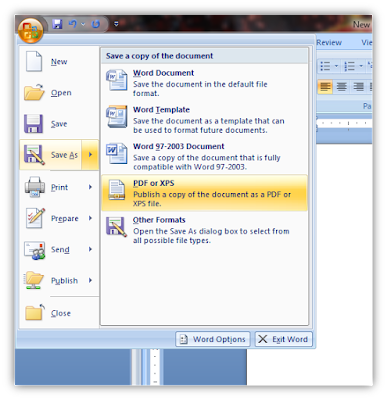
Some of our work in Microsoft Word 2007, we want to save as pdf file but with Microsoft Office we can't save as pdf file. All you need is 2007 Microsoft Office Add-in: Microsoft Save as PDF or XPS. So, this is the How-To @ HOW-TO HOUSE.


[Screenshot]
______________________________________________________________________

Don't forget to SUBSCRIBE to get an Updates from HOW-TO HOUSE on your inbox.


Delivered by FeedBurner
You can ask for more tricks here.
___________________________________________________________________________________

Don't forget to drop your comment.

Any Question or Suggestions? Join our forum at HOW-TO HOUSE Forum.

Tuesday, April 27, 2010

How To Watch Youtube And Dailymotion In Windows 7 Media Center

Are you like to browse any video from Youtube? or like to watch video from Dailymotion? Have you been looking for a way to watch your favorite viral videos from YouTube and Dailymotion from the couch? This is HOW-TO watch Youtube just use plugin which allows you to watch streaming video in Windows 7 Media Center.


Get Macrotube
1. Download and install the plugin called Macrotube following the defaults through the install wizard. (Link Below)

2. After it’s installed, open Windows 7 Media Center and you’ll find Macrotube in the main menu.

3. Currently there are three services available. YouTube, Dailymotion, and MSN Soapbox. Just select the service where you want to check out some videos.


4. You can browse through different subjects or categories.


5. Drill down you search content by date, rating, views, and relevance.


6. Settings available such as the language beta, auto updates, and appearance.

7. Now, you can watch any video from Youtube just from your own Windows 7 Media Center


Notes :  
This neat project is still in development and the developer is continuing to add changes through updates. It only works with Windows 7 Media Player, but there is a 32 & 64-bit version. Sometimes we experiences certain videos that wouldn’t play and it did crash a few times, but that is to be expected with a work in progress. But overall, this is a cool plugin that will allow you to watch your favorite online content from WMC.

Link :
and get more details and troubleshooting help from the GreenButton forum

Related Link :


#credits: howtogeek

Saturday, March 20, 2010

How To Take Capture a Photo of Your Whole Desktop


Want to show a friend your desktop? What about grabing a game picture? Or want to take any picture of your desktop? And then taking a picture of the internet. Now, you can take any picture on your desktop. This is how to take a photo without using special hardware or software computer programs. Just a simple trick. Here we go.

Steps :
1. Go to the screen were you want to take the picture.

2. Press the "Prnt Scrn" or "Print Screen" button, it's usually above the "Insert" and "Delete" buttons.

3. Now, open Paint program. Go to Start > All Programs > Accessories > Paint.exe.
"Paste" it by press "ctrl + v" or Right click > Paste.

4. Then save the picture.

    * To save the picture, use the PNG picture format for a better picture quality.

    Now, you can take any photo on your computer desktop. Just by press the "Prnt Scrn" or "Print Screen" button and Paste it on Paint. That's the trick. 

    Enjoy!!

    Saturday, January 16, 2010

    Right Click Won't Work : How To Enable Right Click

    Sometimes, due to some viruses or worms, your system may disable the Right click context menu. It's so difficult to work with computer if there is no Right Click menu. You just can't do any work on your computer. So, for those who facing this problem,  you can use this steps . But only after removing all viruses and bugs from your computer by scanning your computer using your Anti-Virus. Otherwise, this method may not work.

    Steps:
    • Go to Start menu. In the search box,  type 'gpedit.msc' and click OK.
    • Go to this location :
      User Configuration > Administrative templates > Windows Components > Windows Explorer
    • In the right pane double click on :
      Remove Windows Explorer's default context menu 
    • Select Disable and click Ok
    Now, restart your PC to apply the changes. Isn't that easy?? :)

    DONE!!!
    ____________________________________________________________

    Don't forget to subscribe to get an Updates from HOW-TO HOUSE on your inbox.


    Delivered by FeedBurner
    You can ask for more tricks here.
    __________________________________________________________________________

    Don't forget to drop your comment.

    Any Question or Suggestions? Join our forum at HOW-TO HOUSE Forum.

    Saturday, January 9, 2010

    How To Open Two Yahoo Messenger At The Same Time On Your PC

    Yahoo Messenger is a tool to chat with our friends all around the world. Yahoo Messenger is the most popular chat tool because it's familiar and easy to use. You have two account of Yahoo Messenger? Want to open two Yahoo Messenger in the same time? Now you can do it by follow these simple steps.
    * How to :
    • Go to Start Menu > In the Search bar type "regedit"

    • Go to HKEY_CURRENT_USER > Software > yahoo > pager > Test

    • Right Click on Test > New > Choose DWORD Value

    • Set the new file name to "plural"

    • Double click on "plural" and change the value number from 0 to 1
    You're done. Now you can open two Yahoo Messenger or  many Yahoo Messenger as you want.

    [TUTORIAL]
     

    Enjoy!!! 
    ______________________________________________________________________

    Don't forget to subscribe to get an Updates from HOW-TO HOUSE on your inbox.


    Delivered by FeedBurner
    You can ask for more tricks here.
    ___________________________________________________________________________________

    Don't forget to drop your comment.

    Any Question or Suggestions? Join our forum at HOW-TO HOUSE Forum.

    Thursday, December 31, 2009

    How to Create a Cracked Effect on Photoshop


    This is an easy lesson and easy to understand. Make a cracked glass effect in Adobe Photoshop. [Screenshot] . The main tool we will use is the Craquelure Filter, to make virtual cracks image. You can use any image for this lesson, work better with reflecting image. Follow Photoshop cracked glass effect tutorial here.


     You will need :  
    1. Adobe Photoshop 5.5 --> CS3, 
    2. Mouse, 
    3. Keyboard, 
    4. An image to edit.

    Let's Start :
    • Pick the Polygonal Lasso Tool and trace an area that you want the crack effect.

    • With the selection active, go to Filter > Texture > Craquelure. Click OK to apply craquelure effect. Right click mouse any where on the image. From the drop-down, choose Deselect to de-active selection.

    • If you want the 'cracks' that are farther from an object appear less prominent : you need to make a new layer, Layer > New. On the new layer, use the Rectangular Marquee Tool and drag a selection area over the 'cracks' that you want to make appearing less visible.

    • With the selection active, grab the Brush Tool (any size) and paint over the cracks in the selected portion. Go over the cracks several times to make them completely covered (invisible). When done painting, right click any where on the image. From the drop-down, choose Deselect to de-active selection.

    Now, you're done with the Photoshop cracked effect lesson.


    [Tutorial]
     
    ______________________________________________________________________

    Don't forget to subscribe to get an Updates from HOW-TO HOUSE on your inbox.


    Delivered by FeedBurner
    You can ask for more tricks here.
    ___________________________________________________________________________________

    Don't forget to drop your comment.

    Any Question or Suggestions? Join our forum at HOW-TO HOUSE Forum.

    Tuesday, December 22, 2009

    USB Port Won't Work : How To Fix It

    USB is great when it works, but as you're experiencing, it can still be a pain when it doesn't. If this problem happens to you, it's so frustrating. When USB port problem happens to you, calm down. This is how to fix it. Actually, it's easy to fix it. Follow this solution.

    • Go to My Computer > Right click and choose properties.
    • Click Device Manager on the left top.


    • Look for Universal Serial Bus controllers and click [+] to open it's contents.
    • On each content, right click > Uninstall each of the content until nothing left in the Universal Serial Bus controllers.
    • Close Device Manager. Restart your PC to apply the changes.
    You're done. After PC restarted, your computer will install your USB hardware automatically for each port you've already uninstall. That's how to fix USB port problem

    [Tutorial]
     

    GOOD LUCK!!
    ______________________________________________________________________

    Don't forget to subscribe to get an Updates from HOW-TO HOUSE on your inbox.


    Delivered by FeedBurner
    You can ask for more tricks here.
    ___________________________________________________________________________________

    Don't forget to drop your comment.

    Any Question or Suggestions? Join our forum at HOW-TO HOUSE Forum.

    Monday, December 21, 2009

    How To Delete Virus or Unwanted File (using Command Prompt)

    There is a various type of viruses on the net. Sometimes, we just can't delete a virus using our anti-virus. Virus will always be our PC enemy. So, this is how to delete virus or unwanted file manually. Watch this tutorial.


    Notes : Make sure the file that you want to delete is a type of virus. Please check virus list here.

    Good luck!
    ______________________________________________________________________

    Don't forget to SUBSCRIBE to get an Updates from HOW-TO HOUSE on your inbox.


    Delivered by FeedBurner
    You can ask for more tricks here.
    ___________________________________________________________________________________

    Don't forget to drop your comment.

    Any Question or Suggestions? Join our forum at HOW-TO HOUSE Forum.

    Thursday, December 17, 2009

    How To Restore Deleted Recycle Bin On Desktop

    Recycle bin deleted accidentally? This is how to restore recycle bin.

    Follow these steps :
    • On desktop, Right click & go to Personalize.
    • On left top click Change desktop icon.
    • Tick item that you want to put on desktop.
    Hope this help you.
      Finish!

      Tuesday, December 15, 2009

      How To Remove Voice From MP3 (No software needed)

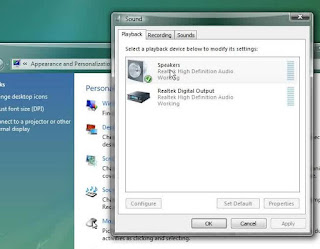
      Want to sing a song? but can't remove the voice. Follow this HOW-TO tutorial.
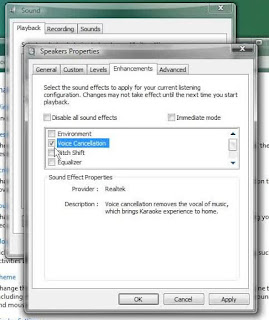
      • Right click >  Personalize > Sounds > Playback tab > double click Speakers
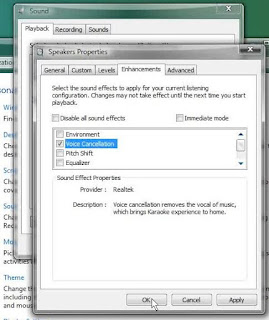
      • Go to Enhancement tab > tick Voice cancellation > OK.
      • READY to sing a song!


      Once you done singing, don't forget to change it back to normal. OKAY!

      :: watch tutorial here


      Note :  For WinXP user, just go to Control Panel. Choose sounds. Look for Voice Cancellation and follow just like the tutorial. OK!

      ENJOY!!
      ______________________________________________________________________

      Don't forget to SUBSCRIBE to get an Updates from HOW-TO HOUSE on your inbox.


      Delivered by FeedBurner
      You can ask for more tricks here.
      ___________________________________________________________________________________

      Don't forget to drop your comment.

      Any Question or Suggestions? Join our forum at HOW-TO HOUSE Forum.

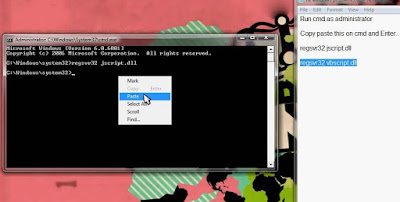
      Yahoo Messenger Problem. How To See Word In The Chat Box

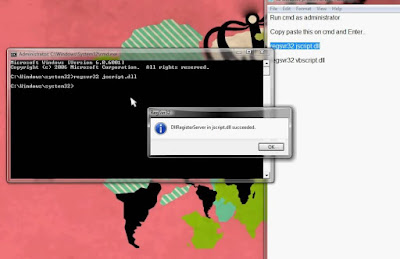
      This is the new problem Yahoo Messenger user facing. The problem is cannot see what we type in chat box. Don't worry guys.HTH just found the solution and it's worked.

      Follow this steps :

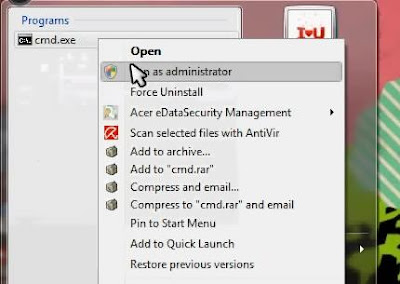
      1. First Run CMD as administrator
      2. Copy paste this on CMD and Enter..
      • regsvr32 jscript.dll
      • regsvr32 vbscript.dll


      Follow the steps and you're done.  Don't forget to restart your PC. ENJOY to chat in Yahoo Messenger again.!

      watch the tutorial
       

      Don't forget to say thank you..:)
      ______________________________________________________________________

      Don't forget to SUBSCRIBE to get an Updates from HOW-TO HOUSE on your inbox.


      Delivered by FeedBurner
      You can ask for more tricks here.
      ___________________________________________________________________________________

      Don't forget to drop your comment.

      Any Question or Suggestions? Join our forum at HOW-TO HOUSE Forum.

        Monday, December 14, 2009

        How To Renew IP Address

        Local area connection shows limited connectivity problem? Want to renew IP address? This is HOW-TO renew your IP address. Follow these easy steps :

        Steps :
        1. Click Start 
        2. Click run 
        3. In the run box type cmd.exe and click OK 
        4. When the command prompt opens type the following. ENTER after each new line.
          - ipconfig /flushdns
          - ipconfig /release
          - ipconfig /renew
          - exit 
        5. Erase your cookies in whatever browser you are using.

        After that, you will get a new IP address. DONE!

        ______________________________________________________________________

        Don't forget to SUBSCRIBE to get an Updates from HOW-TO HOUSE on your inbox.


        Delivered by FeedBurner
        You can ask for more tricks here.
        ___________________________________________________________________________________

        Don't forget to drop your comment.

        Any Question or Suggestions? Join our forum at HOW-TO HOUSE Forum.

        How To Create An Animated GIF Using Photoshop

        Create your very own animated GIF using Photoshop. Just follow these easy  steps :


        Steps :
        1. Open Photoshop and create a new image file measuring 100 by 100 pixels. Set the resolution to 72 pixels per inch and the mode to RGB color.
        2. Choose Show Layers from the Window menu. This will bring up the Layers floating palette. 
        3. Select the pencil tool. Use it to draw a picture.
        4. Click on the Layer palette's submenu arrow and select Duplicate Layer.
        5. Click on the eyeball icon to the left of the bottom layer on the Layer palette. Use the pencil tool to add to the image on the top layer. Select the erase tool to remove part of the image.
        6. Under the file menu, select Jump to, and then Adobe ImageReady 2.0. Save when prompted.

          In  Photoshop Image Ready,
          1. Choose Show Animation from the Window menu. This will bring up the Animation floating palette.
          2. Click on the Animation palette's submenu arrow and select Make Frames from Layers.
          3. Use Save Optimized As to save the animation under a new name.
          * Each time you made a change,  preview your animation by pressing play on the Animation palette.
          ________________________________________________________________________

          Don't forget to SUBSCRIBE to get an Updates from HOW-TO HOUSE on your inbox.


          Delivered by FeedBurner
          You can ask for more tricks here.
          ___________________________________________________________________________________

          Don't forget to drop your comment.

          Any Question or Suggestions? Join our forum at HOW-TO HOUSE Forum.

          How to Upgrade Windows Vista to Windows 7

          Depending on your hardware and your current edition of Windows Vista, you can use the Upgrade option during Windows 7 installation to upgrade from Windows Vista to a corresponding or higher edition of Windows 7. Upgrading is the most convenient way to get Windows 7 on your computer, because it keeps your files, settings, and programs from Windows Vista in place. There are 2 ways to Upgrade Windows Vista to Windows 7.

          1. Upgrade Installation
          2. Custom ( Advanced ) Installation.

          So here we Cover the Both of them, but before you have to backup your Hardisk. You’ll need to move your files off of your PC before you install Windows 7. To make this easier, we recommend a free download called Windows Easy Transfer, which will require an external hard disk. They’re readily available at electronics and office supply stores, and they provide an easy way to add additional storage space to your computer.
          32-bit or 64-bit: Which version of Windows 7 to install?
          Both 32-bit and 64-bit installation discs are included in the Windows 7 package. 64-bit operating systems can handle large amounts of memory—typically 4 gigabytes (GB) of random access memory (RAM) or more—more efficiently than 32-bit operating systems. However, not all computers are 64-bit capable.
          To find out which Windows 7 installation disc you can use, click the Start button, right-click Computer, and then click Properties.
          •  Next to System type you should see either “32-bit Operating System” or “64-bit Operating System.” If you see “32-bit Operating System” listed, then you’re running the 32-bit version of Windows Vista.
          •  If “64-bit Operating System” is listed next to System type, then you’re running the 64-bit version of Windows Vista and can run the 64-bit version of Windows 7.
          Make sure that your programs and devices will work with Windows 7
          Since your computer is running Windows Vista, it meets the system requirements to run Windows 7. You should still download and run the free Windows 7 Upgrade Advisor. It helps find potential compatibility issues with your computer’s hardware, devices, or programs that might affect installing Windows 7, and gives recommendations on what to do before you upgrade to improve your PC’s compatibility with Windows 7.

          Download and install Windows 7 Upgrade Advisor
          Follow the steps below to download the Windows 7 Upgrade Advisor.
          1. Go to the Windows 7 Upgrade Advisor webpage.
          2. Click Download the Windows 7 Upgrade Advisor.
          3. Click Download, and then save the installation file to your PC.
          4. Double-click the installation file saved to your PC.
          5. If you agree to the license terms, click Install.
          6. Click Close.
          If you see a pre-selected check box, clicking Close will run Windows 7 Upgrade Advisor.


          Run Windows 7 Upgrade Advisor
          1. If Windows 7 Upgrade Advisor isn’t already running, double-click the Windows 7 Upgrade Advisor shortcut on your PC’s desktop.

          2. In the security warning dialog box, click Yes.
          3. Click Start check. The Windows 7 Upgrade Advisor will scan your PC’s hardware, devices, and installed software. This might take a few minutes. When finished, it will provide you with a compatibility report that you can print or save for your reference.
          4. Read the report carefully, and make note of any issues that the Upgrade Advisor finds and what the recommended steps are to fix these issues.

          5. If you want to save the report and print or refer to it later, click Save Report, type a name in the File Name box, and then click Save.

          6. Click Close.
          You can scan your PC more than once. We recommend running the Windows 7 Upgrade Advisor again after taking any of the recommended steps or making any changes to your PC’s hardware, devices, or installed software before upgrading to Windows 7. Be sure to save your updated report.
          Now Here is the Main Step. As we mention Above you can Upgrade windows Vista with 2 steps Upgrade Installation and Custom ( Advanced ) Installation. So here is the descriptions:-


          1. Upgrade Installation

          When you upgrade to Windows 7, you keep your files, settings, and programs from Windows Vista.

          1. Turn on your PC.

          2. After Windows Vista has started, do one of the following:
          * If you purchased and downloaded Windows 7 online, open the installation file.

          * If you have a Windows 7 installation disc, insert the disc into your computer. Setup should start automatically. If it doesn’t, click the Start button, click Computer, double-click your DVD drive to open the Windows 7 installation disc, and then double-click setup.exe.
          3. On the Install Windows page, click Install now.

          4. On the Get important updates for installation page, we recommend getting the latest updates to help ensure a successful installation, and to help protect your computer against security threats. You computer will need to be connected to the Internet during Windows 7 installation to get these updates.

          5. On the Please read the license terms page, if you accept the license terms, click I accept the license terms, and then click Next.

          6. On the Which type of installation do you want? page, click Upgrade.
          You might see a compatibility report.

          7. Continue to follow the instructions to finish installing Windows 7.


          2. Custom ( Advanced ) Installation.

          When you choose the Custom option during installation, you install a new copy of Windows on your PC.

          1. With your computer on and Windows Vista running, do one of the following:
          * If you have a Windows 7 installation disc, insert the disc into your computer. Setup should start automatically. If it doesn’t, click the Start button, click Computer, open the Windows 7 installation disc on your DVD drive, and then double-click setup.exe.
          * If you purchased and downloaded Windows 7 online, open the installation file.
          2. On the Install Windows page, click Install now.

          3. On the Get important updates for installation page, we recommend getting the latest updates to help ensure a successful installation, and to help protect your computer against security threats. Your computer will need to be connected to the Internet during Windows 7 installation to get these updates.

          4. On the Please read the license terms page, if you accept the license terms, click I accept the license terms, and then click Next.

          5. On the Which type of installation do you want? page, click Custom.

          6. Choose the partition containing Windows Vista (this is often the computer’s C drive), and then click Next. (Do not select your external USB hard drive.)

          7. In the Windows.old dialog box, click OK.

          8. Continue to follow the instructions to finish installing Windows 7, including naming your computer and setting up an initial user account. You can use the same names that you used in Windows Vista, or choose new ones.

          Just follow all the steps. And you're done.Thank you! :)


          Recommend to your friends!


          Followers

          Sponsor

           
          Powered by Blogger.