Showing posts with label Facebook. Show all posts

Tuesday, February 14, 2012

How To Add Photo Zoom in Facebook

New way to view photo in Facebook, just using zoomer add-on. No need to click the photo to view it just hover your cursor to the photo and it will be zoom to 2x size.


With this add-on, shows full image when you hover over a thumbnail or image link. Works with many sites including Amazon.com, deviantART.com, Facebook.com, Flickr.com, Google Images, GMail.com, Google+, Reddit.com, Tumblr.com, Twitter.com, and more. Let's try this add-on. It's supports Chrome & Firefox browser. Get it now!

Add-on for CHROME
Add-on for FiREFOX


HOW TO USE
• Just install the add-on
• Once it finished, restart your browser
• Hover your cursor to any photo in Facebook.

Enjoy! 

Tuesday, January 24, 2012

How To Hide Facebook Fan Page at the Sidebar in Blogger

Usually, you will find a Facebook fan page at the sidebar or footer. Now can hide your Facebook Fan Page widget. Wonder how? Look at the demo.

DEMO

LET'S ADD IT
1. Go To Dashboard >> Design ->> Edit HTML

2. Check the "Expand Widget Templates" box

3. Search (Ctrl+F) for </head> tag,


4. Then, copy and paste the code below, BEFORE </head> tag,
<script src='https://ajax.googleapis.com/ajax/libs/jquery/1.6.1/jquery.min.js' type='text/javascript'/>
*If you already have the code in your template, just ignore step no 4.

5.  Save your template.

6. Now go to your Dashboard >> Design >> Page Element >> Add a Gadget.


7. Paste this code in.
<script type="text/javascript">
//<!--
$(document).ready(function() {$(".w2bslikebox").hover(function() {$(this).stop().animate({right: "0"}, "medium");}, function() {$(this).stop().animate({right: "-250"}, "medium");}, 500);});
//-->
</script>
<style type="text/css">
.w2bslikebox{background: url("https://blogger.googleusercontent.com/img/b/R29vZ2xl/AVvXsEiL3O4XaE3ZlfgjFSwFLYHvUoyVVwnva4thailpgPvioSobFYq-Pp_-fMzkWGvze-xaWkbt7PfvWAg4R_RNreI3v4daSLYExxuznsmz9zOSyqV0vvYPYOiMrxkVn9t4bJ9LiuKSWHZGCEw/s150/HHLab_facebookbadgeBlue.png") no-repeat scroll left center transparent !important;display: block;float: right;height: 270px;padding: 0 5px 0 46px;width: 245px;z-index: 99999;position:fixed;right:-250px;top:20%;}
.w2bslikebox div{border:none;position:relative;display:block;}
.w2bslikebox span{bottom: 12px;font: 8px "lucida grande",tahoma,verdana,arial,sans-serif;position: absolute;right: 6px;text-align: right;z-index: 99999;}
.w2bslikebox span a{color: #808080;text-decoration:none;}
.w2bslikebox span a:hover{text-decoration:underline;}
</style><div class="w2bslikebox" style=""><div>

<iframe src="http://www.facebook.com/plugins/likebox.php?href=YOUR FAN PAGE URL&amp;width=245&amp;colorscheme=light&amp;show_faces=true&amp;connections=9&amp;stream=false&amp;header=false&amp;height=330" scrolling="no" frameborder="0" style="border: medium none; overflow: hidden; height: 330px; width: 245px;background:#fff;"></iframe></div></div>
*YOUR FAN PAGE URL = Put your Facebook Fan Page URL

8. You can change the facebook logo with another color given below, or use your own image.


GREEN: https://blogger.googleusercontent.com/img/b/R29vZ2xl/AVvXsEggzd43z5UGniAsRmu3IFcwsSl_cXMnlCAy3FNtdsDnALObLLYecFpUt5GfH-Z0N6QaxKYZ-mUuWB-sbvkaleiYpzBajxYB6V2DwlOuINHWrEnoEhq1MEUwsCvtEdDFpaAR0N1UFuOZn2w/s150/crb_facebookbadge.png

PINK: https://blogger.googleusercontent.com/img/b/R29vZ2xl/AVvXsEhO8sx2T34DIC4BBYqPddr6FbQH0ttA_kbFKgT0U09YjD0GVKpd_KIGp3J8K_LBM2yoT1veNxpjR4DhtVYLOyk5fjPXg1Y3_0Q4Xm4OHRFh_GjXpG1AQsX_nrjzDnOPrB3_3IjUwKBVTh8/s150/mhw_facebookbadge.png

9. Save. You're done.

Refresh your blog to see the result. =)

+ Leave your comment.

Sunday, January 22, 2012

How To Integrate Facebook Comment Box in Blogger

Recently Facebook has launched many social plugins and web developers for bloggers. Their much improved Facebook comment box. Facebook comment box is one of the useful tool for bloggers to increase conversations. So, if you interested to integrate Facebook comment box on your blog and change blogger comment into Facebook comment box? This entry is just exact for you. Let's do it.

Note : Before make any changes, back up your template.

1. Visit Facebook Developer Page. Enter your blog name, URL and click on Create application.


2. After that, copy the APP ID.


3. Then, go to Edit Setting


4. If you using blogspot, follow below instruction,


5. But if you using other domain like .com, follow instruction below,


6. Save your App.


ADD FACEBOOK COMMENT BOX

1. Go To Blogger >> Design ->> Edit HTML

2. Check the "Expand Widget Templates" box


3. Search for <html and just after it add this code,

xmlns:fb='http://www.facebook.com/2008/fbml'

4. Now search (Ctrl+F) for,
<body>

5. Just after it, add the below code,
<div id='fb-root'/>
<script>
    window.fbAsyncInit = function() {
    FB.init({
      appId  : &#39;YOUR_APP_ID&#39;,
      status : true, // check login status
        cookie : true, // enable cookies to allow the server to access the   session
      xfbml  : true  // parse XFBML
    });
  };
    (function() {
    var e = document.createElement(&#39;script&#39;);
      e.src = document.location.protocol     &#39;//connect.facebook.net/en_US/all.js&#39;;
    e.async = true;
      document.getElementById(&#39;fb-root&#39;).appendChild(e);
    }());
</script>

6. Change YOUR_APP_ID with your App ID number.

7. And then, search (Ctrl+F) </head> and just above it paste the below code,
<meta expr:content='data:blog.pageTitle' property='og:title'/>
<meta expr:content='data:blog.url' property='og:url'/>
<meta content='YOUR BLOG NAME' property='og:site_name'/>
<meta content='BLOG-LOGO-IMAGE-LINK' property='og:image'/>
<meta content='YOUR_APP_ID' property='fb:app_id'/>
<meta content='http://www.facebook.com/YOUR _FACEBOOK_USERNAME' property='fb:admins'/>
<meta content='article' property='og:type'/>

Replace the red code with your details.

8. Now, search (Ctrl+F) for this ;
<b:includable id='comment-form' var='post'>

9. After it paste the code given below,
<b:if cond='data:blog.pageType == &quot;item&quot;'>
<div style='padding:0px 0px 0px 0px; margin:0px 0px 0px 0px;'><script src='http://connect.facebook.net/en_US/all.js#xfbml=1'/>
<div> <fb:comments  colorscheme='light' expr:href='data:post.url' expr:title='data:post.title' expr:xid='data:post.id' width='520'/></div>
</div>
</b:if>

If you want to use the dark scheme replace light with dark

To change the comments box width, change this value width='520'

#UPDATE
10. Search (Ctrl+F) <fb:comments

11. Replace it with,
<script src='http://connect.facebook.net/en_US/all.js#xfbml=1'/> <fb:comments migrated='1'
12. Save your template.


HIDE BLOGGER COMMENT

Now you need to hide default blogger commenting system. So navigate to Settings > Comments and select hide and save settings.


DONE! See the result.

With this, your previous blogger comment will be hidden.


Do you like it? Recommend it!

Friday, January 20, 2012

How To Create Upside Down Text


Do you want your text upside down on Facebook? Who said writing upside down is difficult? It's really easy as ABC. This is the example:


ǝldɯɐxǝ

HOW TO MAKE UPSIDE DOWN TEXT

1. Go to this site:


2. Type the words that you want to put on Facebook, just copy-paste the word into Facebook.

3. Walla. Just like ABC. Done!

So, you can hide you word from your reader or friend from to be read directly.

Wednesday, April 6, 2011

How To Add Facebook Profile Badges into Your Blog

Almost everyone has a Facebook account, including bloggers. If you want to know and be friends with your readers, put your Facebook profile badge is a right step. Do you want to add your Facebook profile badge into your blog? Follow these simple steps :


Steps :
1. Login into your facebook account.

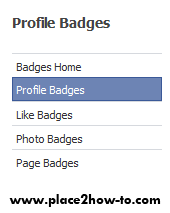
2. On the profile page on the left side under your friends list, search for "Add a Badge to Your Site" or just click here.

3. It will take you to Facebook badges option.


4. Then, edit your badge by click 'Edit This Badge'.

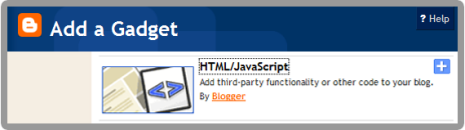
5. Once you done editing, just click your blog platform icon to install it into your blog whether Blogger, Typepad or click Other to copy the code manually and paste it into HTML/JavaScript.

6. Just save it & DONE.


Now you can have more friends from your blog readers. Enjoy!

Saturday, January 1, 2011

How To Add Facebook "Dislike" Button to Facebook


We are already too familiar with the functions of facebook 'Like' button, which we 'Like'ing friend's status or comment. Wanna try something with your facebook such as a 'Dislike' button ?Only need to install add-on to your browser and you will get this Dislike button. It's called FBD (Facebook Dislike).

Facebook "Dislike" button
Example of  "Dislike" button on HTH fan page

Get it now! Install this add-on :

FBD for Mozilla Firefox

FBD for Google Chrome


You also can find the FBD on facebook, here.

:: FBD only supported the following browsers at this moment.

Note :  Dislike button is not visible by any other facebook users unless FBD installed on their computer or laptop.


If you interested with FBD, recommend it to your friends!

Wednesday, December 29, 2010

How To Download All Photo in Facebook Photo Album


Facebook has a function to gather photo in an album. You can add and categorize your photos by albums you want. You wanna download the photos in a photo album? Download all pictures in the photo album at once using the add-on is known as facePAD (Facebook Photo Album Downloader). You can download your own photo album, a friend or fan page. You can download photo album that you want to use facePAD.

To download the photos in Facebook Photo Album, install FacePAD add-on : 


DOWNLOAD PHOTO ALBUM
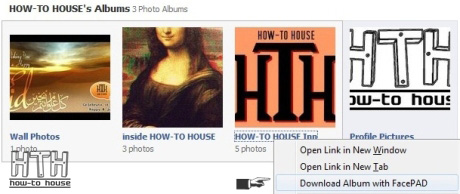
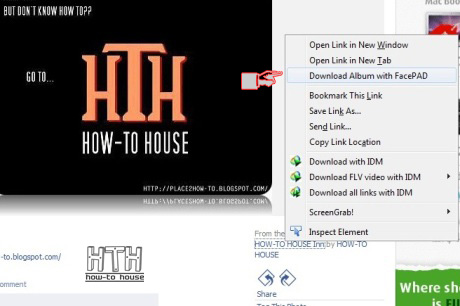
1. Go to any photo album that you want to download, then right click on the Photo Album link, then click on "Download Album with FacePAD" option.


or,


2. A window will pop-up asking to choose a directory/folder where you would like save the photos.

3. Then, the photo album will be downloaded. Photos will be rename according to the photo album.

note : May downloading process will hang for a second to download large file album as it searches through the Facebook album. Then, it will start downloading immediately.


Video tutorial by the Add-on creator :

Enjoy guys! 


Like this tutorial? Recommend it to your friends!

Sunday, December 12, 2010

How To Embed Youtube Video in Facebook Fan Page


This tutorial will teach you how to add Youtube video in your Facebook Fan Page. Now you can add your own video, product, your favorite music band, and many more to your Facebook fan page. If you want to do so, just follow this simple hack using Static FBML.

So, let's get start :

1. Login into your Facebook Account.

2. Go to static FBML then, "Like" static FBML in Facebook.

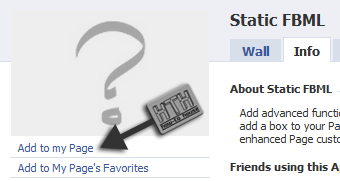
3.  Click at Add to my page.


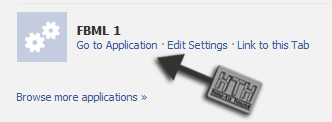
4. After you’ve added FBML application. Go “Edit Page” again > Application > FBML


5. Rename your FBML with your own desired title. And Put FBML code below, in it. [screenshot].
<fb:swf
swfbgcolor="000000" imgstyle="border-width:5px; border-color:white;" swfsrc='http://www.youtube.com/v/YOUTUBE VIDEO UNIQUE CODE&autoplay=1'
imgsrc='http://img.youtube.com/vi/YOUTUBE VIDEO UNIQUE CODE/0.jpg' width='480' height='360' />

You can customize the height and width by edit this code : width='480' height='360

Each Youtube video has a Unique Code. Don't know where to find Youtube Video Unique Code? Easy. Look screenshot below.


6. Save it. DONE!


It will looks like this,


Adding Youtube Playlist instead of single video.

You just need to change this bold code below :
<fb:swf
swfbgcolor="000000" imgstyle="border-width:5px; border-color:white;" swfsrc='http://www.youtube.com/v/YOUTUBE VIDEO UNIQUE CODE&autoplay=1'
imgsrc='http://img.youtube.com/vi/YOUTUBE VIDEO UNIQUE CODE/0.jpg' width='480' height='360' />
Change it to :
swfsrc='http://www.youtube.com/cp/YOUR PLAYLIST UNIQUE CODE'

DONE!

[?] Drop your comment for any question.

Wednesday, December 8, 2010

How To Get Back To Old Facebook Interface


Facebook (FB) just update and renew their interface. Some said it nice. But some said not!. So, do you want to get back to Facebook old interface. Follow this steps :

1. Login to Facebook account.

2. Go  to Account at the top right side :


3. Go to Account Settings :


4. Deactivate your account for 10 - 15 minutes.


Then, activate it back later.
5. Your facebook will back to old Facebook interface.


DONE!

Friday, October 22, 2010

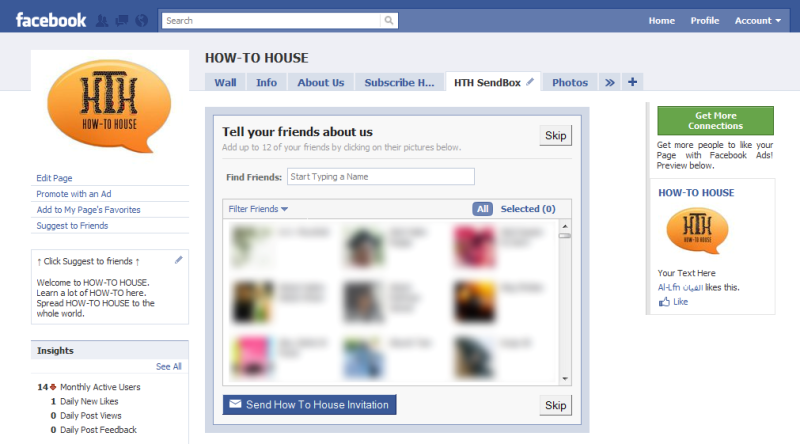
How to Add an Invite Friends Box to Your Fan Page [ FBML Tutorial ]

The best feature that Facebook has that any business can take advantage of, is the ability to allow your visors, customers, fan to share their interest in your company/brand/product with their friends. This ability to virally share can be leveraged to encourage your “fans” to “share” your fan page with others through the Facebook “multi-select” box. This can be implemented entirely within static FBML with just a few short lines of code.  The multi-select box will show the current users friend list, allowing them to select who they want to share the fan-page with when they click send. We recommend placing this box on a contest, call to action or “share” tab.

Photobucket

How to Add : 
  • Like static FBML in facebook
  • Then, click at Add to my page
  • Custom your static FBML with following code [change the Uppercase text]

Now your Fan page have a Invite Friends Box on your Fan page tab. DONE!

Thursday, September 2, 2010

How To Select All Friends In Facebook

If you want to invite all your friends in Facebook,  you need to select one by one until you selected all of your friend. It can be tedious. So here's a quick javascript to select all your friends in Facebook so you can invite them all in one quick motion.

Here the javascript :


[Tutorial]

  • Simply copy and paste that into the address bar when you have the friend selector window open. 

Now, you can use it to invite friends to your facebook groups, pages, anywhere the friend picker window shows up!  

ENJOY!!
______________________________________________________________________
credits to:
Don't forget to subscribe to get an Updates from HOW-TO HOUSE on your inbox.


Delivered by FeedBurner
You can ask for more tricks here.
___________________________________________________________________________________

Don't forget to drop your comment.

Any Question or Suggestions? Join our forum at HOW-TO HOUSE Forum.

Wednesday, December 16, 2009

FACEBOOK : How To Change Your Password

If you think that someone else already knows your password, or if you’ve think that the current one just isn’t secure enough, you should change your Facebook password. Following these steps, you can accomplish this quickly and easily.

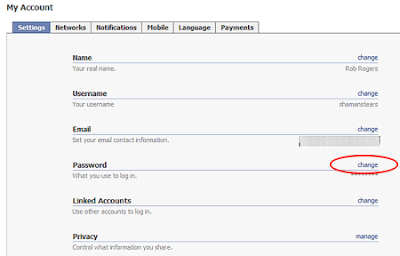
1. Go to Facebook and login to your account.

2. Go to the right side of the menu bar and select Settings.

3. The My Account page will appear. On the Settings tab, go to the Password section and select the change link.


4. Input your Old Password (the current one). Input your New Password and input it once again to Confirm it.

 You're done!


Followers

Sponsor

 
Powered by Blogger.