Showing posts with label Computer Tips and Tricks. Show all posts

Saturday, September 22, 2012

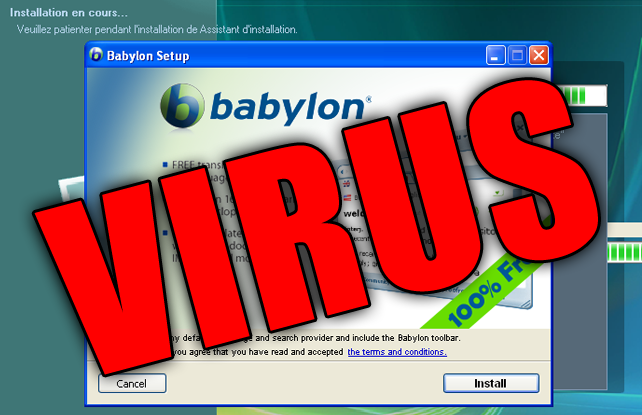
How To Get Rid of Babylon Search

Do you have problem with Babylon search with your Mozilla Firefox? That was extremely annoying. So, let's get rid of it quickly. This is the most worked way to remove it.


STEPS

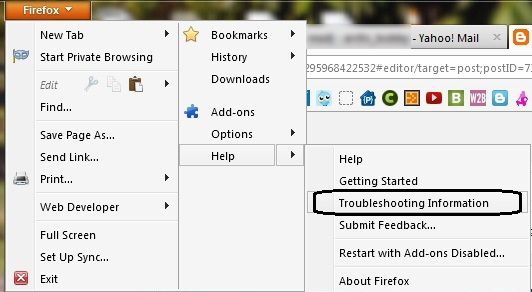
1. Go to Firefox tab -> Help -> Troubleshooting Information


2. Then, click on the "Reset Firefox"


3. Firefox will restart and will work perfectly after that.

Bye bye Babylon. :P

Leave your comment as appreciation.  :D

Friday, June 1, 2012

How To Create Screenshot with Media Player Classic (MPC)

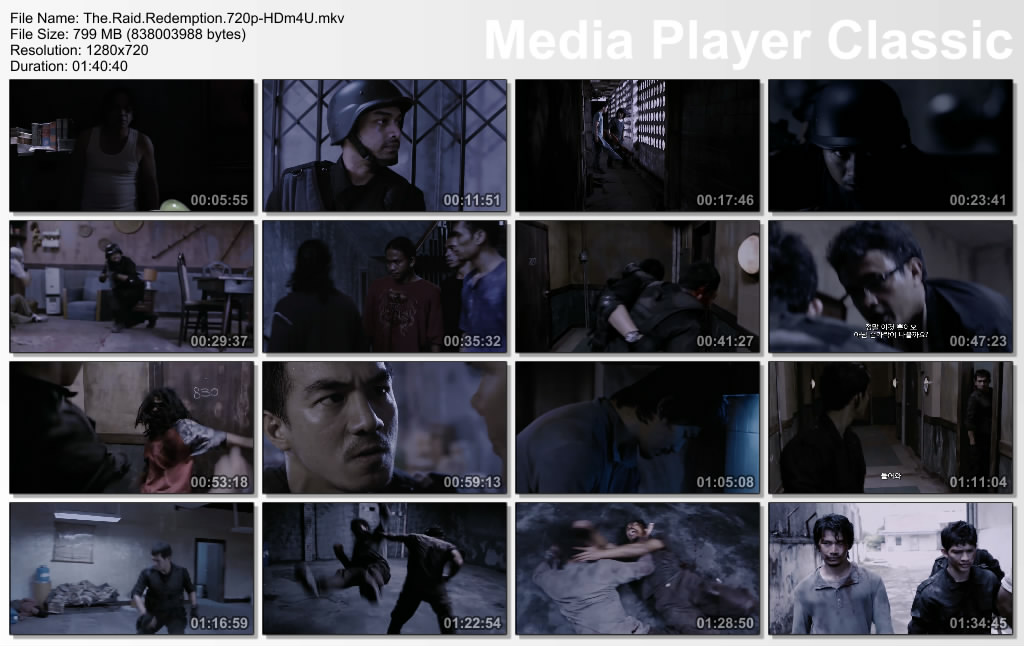
Have you seen screenshot like this?


You wanna create it yourself? It's easy. Just using your Media Player Classic. Easily follow this steps.

1. Of course you need to have Media Player Classic (MPC). Download it here.

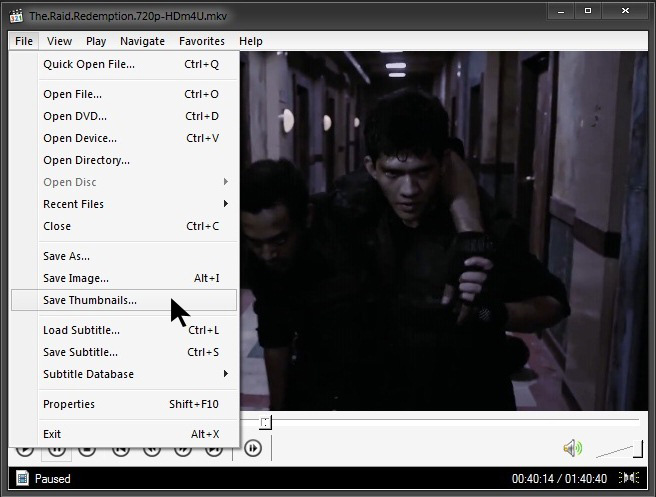
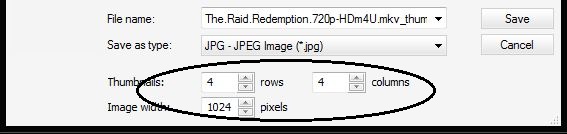
2. Play any movie that you want to take a screenshot. Then, go to File tab --> Save Thumbnails


3. Then, you can customize the amount of thumbnails, columns or image width. Don't forget to set directory where you want to save the screenshot.


4. When you finish customizing, just click Save.

Finish!

You can create a screenshot of any film with MPC. Have a nice day! =)

Thursday, May 24, 2012

How To Fix Multiple Networks at Startup But No Internet Access

Can't connect to the internet because it's showing as being connected to multiple networks? A Home network and an Unidentified network.  When you facing this problem, just follow this tutorial.

Apparently there is an Apple program called "Bonjour Services" it is installed in Windows 7 with programs like iTunes. It is also installed with Adobe PS3 programs but usually shows up as ##Id_String1.6844F930_1628_4223_B5CC_5BB94B879762## in Adobe.

To see if you have the Bonjour service or ##Id_String1.6844F930_1628_4223_B5CC_5BB94B879762## running on your PC.

1. Click Start Right-click "Computer" and select "Manage".
2. Expand "Services and Applications" -> "Services".
3. Find the Bonjour name or ##Id_String1.6844F930_1628_4223_B5CC_5BB94B879762## in the list of services.
4. Double-click this to open up a Window.
5. Under the General Tab next to Start-up Type Select Disabled from the drop down.
6. Finish!

Now test and see if you still have connectivity issues. Good luck!


credit: w7forum.com

Sunday, March 25, 2012

How To Delete Windows.Old Folder

After finished installing you new windows OS, it will leave a folder named as Windows.Old. It is also used a big size of your hard drive. You cannot easily delete it. So, follow this instructions.

STEP TO DELETE WINDOWS.OLD

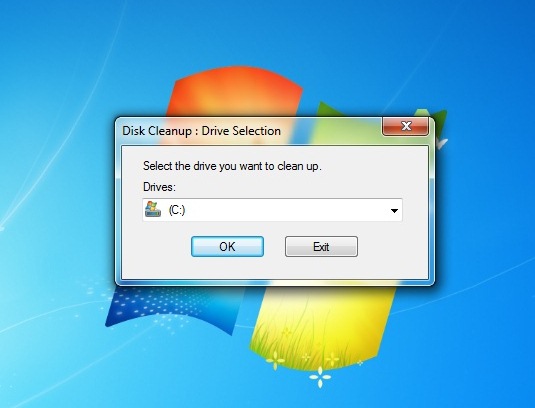
1. Open Disk Cleanup program. Go to Start Menu >> All Programs >> Accessories >> System Tools >> Disk Cleanup


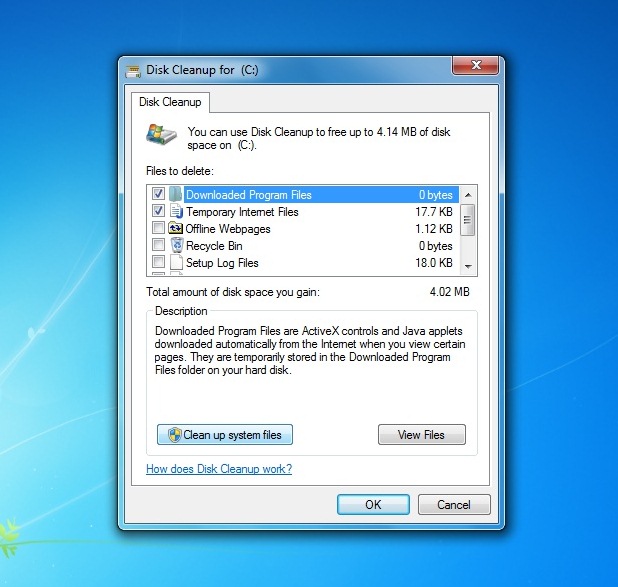
2. Then, click Clean up system files >> Ok


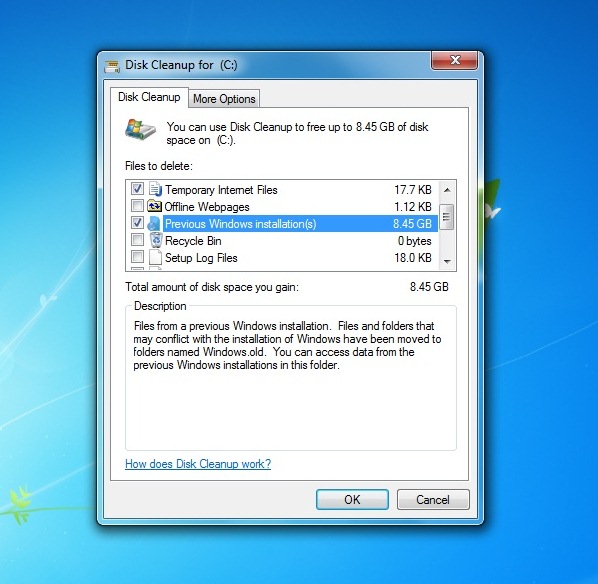
3. After that, check Previous Windows Installation(s), then click Ok.


4. Just wait til' finish.

Now, folder Windows.Old is deleted. :)

Saturday, February 18, 2012

How To Change Back .lnk Files to Normal

The .lnk file extension refers to a shortcut link on your computer, not the actual file. This occurs when you upload the document while the file is still open or if you load the file from the Recent Files folder instead of My Documents, My Computer, or the Desktop. 


This problem make you uncomfortable to use your computer. So let's fix it now.

METHOD #1
1. Open the Registry Editor (click Windows + R, type regedit, hit enter).

2. Navigate to this registry branch:

HKEY_CURRENT_USER\Software\Microsoft\Windows\CurrentVersion\Explorer\FileExts\.lnk

3. Find the subkey called User Choice and delete it.

4. Close Registry Editor.

5. Reboot your PC.


or METHOD #2
Just run this tool to fix it automatically;

#Window 7
#Windiws Vista


No more .lnk files. Enjoy guys! =)

Thursday, February 16, 2012

How To Bypass Survey To Continue Download in Most Website

This surveys always annoys user and make us not interested to download the file we want. It kills our interest. The site like sharecash use this surveymethod to earn some money. The surveys is look something like this:


You wanna get rid from this annoying survey? Actually it's really easy to bypass the freakin' survey. Let's know how.

BYPASS SURVEY
All you need to do is DISABLE JAVASCRIPT.

Mozilla - Go to Options ->> Content ->> Uncheck Enable Javascript.


Same goes to other browser. Just DISABLE JAVASCRIPT.

Easy aite! Enjoy your downloads! =)

Saturday, February 11, 2012

Change Your Folder To Any Color in Windows Explorer

Windows Explorer is too boring? Folder Colorizer is a nifty little software that add colorize functions to any folders in Windows explorer. Color it up! Assign any color to any folder – just right-click a folder and choose “Colorize”! Supports your own colors, labels and works seamlessly with any version of Windows.


HOW TO APPLY
• Right click on any folders > select Colorize > Yellow, Lawn Green, Red, Blue, Silver, Violet, Sandy Brown or Aquamarine.

• You can also choose other colours that are not enabled by default. You also can pick your own color by select Color...

Folder Colorizer is compatible with Windows XP, Vista and 7. It also works up to Windows 8 Developer Preview.

DOWNLOAD: Folder Colorizer

Credits: Softorino

Monday, January 23, 2012

How To Create a Fake PC Virus

Wanna make some fun with your friends? How about create a fake virus and put it their desktop. Wait and see their reaction. LOL.


CODE:
X=MsgBox("Message Description",0+16,"Title")

1. You can write any number from 1,2,3 or 4 instead of 0 (before the '+' symbol) and here is the meaning of these numbers:

0 = OK Button,
1 = OK / Cancel Button,
2 = Abort / Retry / Ignore Button,
3 = Yes / No / Cancel Button,
4 = Yes / No Button,


2. You can write 32 or 48 or 16 instead of 64. Here is the meaning of each number:

16 = Critical Icon,
32 = Help Icon,
48 = Warning Icon,
64 = Information Icon,

Make sure you add ".vbs" after the name.

Finish. Have fun. :)

credit: HatifHammad

Friday, January 21, 2011

How To Partitioning or Resize Hard Drive in Windows 7

Do you want to partitioning your hard drive in windows 7 but did not know how? Or you want to resize your hard drive? It use to be the same method in windows vista. For more details, HOW-TO HOUSE will share a tutorial to partitioning and resize your hard drive in windows 7. Let's check this video.


Partition Hard Drive :


Resize Hard Drive :


How is it? Is this video tutorial help you? This video tutorial gives you a well knowledge to do the stuff about your Hard Drive.


Source : Flandersir and TigerDirectTV

Sunday, January 16, 2011

How To Save Windows Movie Maker as HD in Windows 7


Windows 7 users have some problem to save Windows Movie Maker (WMM) video as High Definition (HD) format such as HD 1280x720, HD 1440x1080, HD 1920x1080 or HD 960x720 just like in the Windows Vista. So, HOW-TO HOUSE  want to share tutorial how to save Windows Movie Maker as HD video in Windows 7. So, let's start guys.

But first, you need to download :

1. Of course WMM. You can get it here. Download Windows Movie Maker 6.0 (Latest Version) :

WMM 6.0 for x32 bit operating system

WMM 6.0 for x64 bit operating system

2. WMM HD Plugin

3. WMM HD dll.bat


How to :

1. Run WMM HD dll.ba.

2. Then, extract WMM HD Plugin. Copy the Profiles folder into this Directories :
C:\Program Files\Windows Movie Maker 6.0\Shared

3. Paste the files into Shared folder.

4. You're almost done. Open your WMM 6.0. Try to create any video then publish. To publish in HD, press CTRL + P. That's the trick. [Important]

5. Then, the options to save as HD ready to work for you.

6. That's all. ENJOY!


Video tutorial :


Is this tutorial helpful? Recommend it! For further question, just drop your comment.

Tuesday, December 21, 2010

How To Save Password and Username in Mozilla Firefox


Wanna save your password and username because you want to format your computer or you have a new computer? A password will be lost if we reformat the computer or you can easily remember it. To make it easier to find or remember the password and username, HOW-TO HOUSE has two method to save it. Follow this tutorial :


Method 1 [Manual]

1. Go to My Computer

2. Go to this Directory :
C:\Users\YOUR COMPUTER NAME\AppData\Roaming

3. Copy  folder named "Mozilla". 

4. Keep the folder and put it in the same place [like above directory] after your  laptop formatted.


Method 2 [Tools]

1. Download this tool here or here.

2. Extract it.

3. Run it. It will show your USERNAME & PASSWORD DIRECTLY.


Now you can use your username and password on your formatted or new computer.


#If you have any comments or suggestions, please leave your comments. Your comments are very useful for the development of wisdom here in the HOW-TO HOUSE.

Saturday, November 27, 2010

How To Fix Google and Yahoo Redirect Problem

Can't search with Google or Yahoo! search engine? Your browser keep redirect you to other site? Such as below screenshot. 


This is a how to remove Google or Yahoo! redirects. If you are searching something on Google or Yahoo! search engine and keep you get the wrong page, this is just right for you. Follow this super simple trick steps : 
  • Go to Local Disk C:\Windows\System32\drivers\etc
  • In etc folder, delete file named "hosts"
  • Delete it.
  • Finish! You can search with Google or Yahoo! search engine.


Have Fun Browsing! :D


Don't forget to subscribe to get an Updates from HOW-TO HOUSE on your inbox.


Delivered by FeedBurner
You can ask for more tricks here.

Don't forget to drop your comment.

Any Question or Suggestions? Join our forum at HOW-TO HOUSE Forum.

Tuesday, October 19, 2010

How To Take Screen Capture of Webpages in Firefox

The easiest way to take a screenshot of a Firefox window is to press the Print Screen key. This screen picture is copied to the Clipboard which can then be pasted in any graphic editor. But the Prnt Scrn key approach is quite limited since you cannot take screen captures of selected regions or a screenshot of a long webpage that scrolls across multiple pages.

Fortunately, there are some excellent screen capture extensions (.xpi) for Firefox that eliminate the need of third-party apps.


  1. ScreenGrab - Screengrab! saves webpages as images...

    It will capture what you can see in the window, the entire page, just a selection, a particular frame. Basically it saves webpages as images [PNG file] - either to a file, or to the clipboard. It captures Flash too! Screengrab! saves entire webpages as images.

  2. Pearl Crescent Page Saver -  is an extension for Mozilla Firefox that lets you capture images of web pages, including Flash content. 

    These images can be saved in PNG or JPEG format.  Using Page Saver, you can capture an entire page or just the visible portion.  You can control the image capture process via a wide variety of settings, including the image file name and scale (e.g., save at 50% of original size). 

So, now you can save a full picture of webpages. 

Enjoy! =)


Don't forget to subscribe to get an Updates from HOW-TO HOUSE on your inbox.


Delivered by FeedBurner
You can ask for more tricks here.

Don't forget to drop your comment.

Any Question or Suggestions? Join our forum at HOW-TO HOUSE Forum.

    Tuesday, September 28, 2010

    How To Turn Off or Disable AVG Antivirus 8.5

    With an anti-virus, sometimes we having difficulty getting a program to work and it says you may want to try turning off any firewalls/anti-virus programs. So, let's learn how to disable or deactivate it. Here we go.
    Follow these steps :
    • Click Start menu > type msconfig in the box search bar, hit enter.
    • msconfig pop-up window will come out.
    • Then click the start up tab and uncheck AVG.
    • Restart your computer to apply the changes.

    If you have Window Defender installed it's easier to use that instead to disable programs.

    Once you done, drop your comment here.
    ______________________________________________________________________

    Don't forget to subscribe to get an Updates from HOW-TO HOUSE on your inbox.


    Delivered by FeedBurner
    You can ask for more tricks here.
    ___________________________________________________________________________________

    Don't forget to drop your comment.

    Any Question or Suggestions? Join our forum at HOW-TO HOUSE Forum.

    Saturday, May 22, 2010

    How To Speed Up Your PC System [Tips & Tricks]

    Sometimes our PC are running so slow because of too many program are running at one time or too many program running at start-up. If you run many program, it will use your RAM. This will cause your PC running slow. So, HOW-TO HOUSE have a tricks to speed up your PC system. Here we go :

     Just follow this :
    1. Go to Start Menu, in the search box type 'MSCONFIG' and Hit Enter.
    2. Pop up window will open. Go to Startup Tab.
    3. Untick which program are not important at windows startup. Example Yahoo Messenger, you can run it manually later if you want to use it.
    4. Then, click Ok.
    5. Restart your PC to apply the changes.

    Tutorial

    Now, your PC will run a bit faster than before. Try it! Don't forget to recommend it folks! :)


    related link :
    HOW-TO PC Tips & Tricks
    ______________________________________________________________________

    Don't forget to subscribe to get an Updates from HOW-TO HOUSE on your inbox.


    Delivered by FeedBurner
    You can ask for more tricks here.
    ___________________________________________________________________________________

    Don't forget to drop your comment.

    Any Question or Suggestions? Join our forum at HOW-TO HOUSE Forum.

    Friday, April 2, 2010

    How To Add Disk Cleanup to the Right-Click Menu

    Disk Cleanup is a tool to clean up your disk from any unwanted file. Disk Cleanup help your PC o  run faster and smooth. But normally when you want to access the Disk Cleanup tool, you usually have to either find it through the start menu, or open up the drive properties window. Instead of going through all that, we can use a simple registry hack to add a menu item to the drive right-click menu. So now you only simply right click and choose Disk Cleanup. Follow this HOW-TO.
    1st method : Manual Registry Hack
    • Go to start menu orb, type "regedit" on the search bar. 
    • Then browse down to the following key :

      HKEY_CLASSES_ROOT\Drive\shell
    • New window will be open.
    • Then, create a new key called “diskcleanup” and set the default value to “Disk Cleanup”.
    • Then create another key underneath it called “command” and set the value to the following :

      cleanmgr.exe /d %1
    • It should looks something like this :

    • You've done!!
    After you finished do the tricks, the change should be immediate, just right-click on the drive and you should see the new menu item.


    2nd method : Downloadable Registry Hack
    • To apply this trick, you can just simply download, extract, and double-click on DiskCleanupDriveMenu.reg to enter the information into the registry.
    • You can use the included RemoveDiskCleanupDriveMenu.reg file to reverse the changes.
     ....................................................................................................................................................
    It will looks something like this after you done this trick.

    ______________________________________________________________________
    thanks & credits to :

    Don't forget to subscribe to get an Updates from HOW-TO HOUSE on your inbox.


    Delivered by FeedBurner
    You can ask for more tricks here.
    ___________________________________________________________________________________

    Don't forget to drop your comment.

    Any Question or Suggestions? Join our forum at HOW-TO HOUSE Forum.

    Saturday, March 20, 2010

    How To Take Capture a Photo of Your Whole Desktop


    Want to show a friend your desktop? What about grabing a game picture? Or want to take any picture of your desktop? And then taking a picture of the internet. Now, you can take any picture on your desktop. This is how to take a photo without using special hardware or software computer programs. Just a simple trick. Here we go.

    Steps :
    1. Go to the screen were you want to take the picture.

    2. Press the "Prnt Scrn" or "Print Screen" button, it's usually above the "Insert" and "Delete" buttons.

    3. Now, open Paint program. Go to Start > All Programs > Accessories > Paint.exe.
    "Paste" it by press "ctrl + v" or Right click > Paste.

    4. Then save the picture.

      * To save the picture, use the PNG picture format for a better picture quality.

      Now, you can take any photo on your computer desktop. Just by press the "Prnt Scrn" or "Print Screen" button and Paste it on Paint. That's the trick. 

      Enjoy!!

      Saturday, January 16, 2010

      Right Click Won't Work : How To Enable Right Click

      Sometimes, due to some viruses or worms, your system may disable the Right click context menu. It's so difficult to work with computer if there is no Right Click menu. You just can't do any work on your computer. So, for those who facing this problem,  you can use this steps . But only after removing all viruses and bugs from your computer by scanning your computer using your Anti-Virus. Otherwise, this method may not work.

      Steps:
      • Go to Start menu. In the search box,  type 'gpedit.msc' and click OK.
      • Go to this location :
        User Configuration > Administrative templates > Windows Components > Windows Explorer
      • In the right pane double click on :
        Remove Windows Explorer's default context menu 
      • Select Disable and click Ok
      Now, restart your PC to apply the changes. Isn't that easy?? :)

      DONE!!!
      ____________________________________________________________

      Don't forget to subscribe to get an Updates from HOW-TO HOUSE on your inbox.


      Delivered by FeedBurner
      You can ask for more tricks here.
      __________________________________________________________________________

      Don't forget to drop your comment.

      Any Question or Suggestions? Join our forum at HOW-TO HOUSE Forum.

      Saturday, January 9, 2010

      How To Open Two Yahoo Messenger At The Same Time On Your PC

      Yahoo Messenger is a tool to chat with our friends all around the world. Yahoo Messenger is the most popular chat tool because it's familiar and easy to use. You have two account of Yahoo Messenger? Want to open two Yahoo Messenger in the same time? Now you can do it by follow these simple steps.
      * How to :
      • Go to Start Menu > In the Search bar type "regedit"

      • Go to HKEY_CURRENT_USER > Software > yahoo > pager > Test

      • Right Click on Test > New > Choose DWORD Value

      • Set the new file name to "plural"

      • Double click on "plural" and change the value number from 0 to 1
      You're done. Now you can open two Yahoo Messenger or  many Yahoo Messenger as you want.

      [TUTORIAL]
       

      Enjoy!!! 
      ______________________________________________________________________

      Don't forget to subscribe to get an Updates from HOW-TO HOUSE on your inbox.


      Delivered by FeedBurner
      You can ask for more tricks here.
      ___________________________________________________________________________________

      Don't forget to drop your comment.

      Any Question or Suggestions? Join our forum at HOW-TO HOUSE Forum.

      Tuesday, December 22, 2009

      USB Port Won't Work : How To Fix It

      USB is great when it works, but as you're experiencing, it can still be a pain when it doesn't. If this problem happens to you, it's so frustrating. When USB port problem happens to you, calm down. This is how to fix it. Actually, it's easy to fix it. Follow this solution.

      • Go to My Computer > Right click and choose properties.
      • Click Device Manager on the left top.


      • Look for Universal Serial Bus controllers and click [+] to open it's contents.
      • On each content, right click > Uninstall each of the content until nothing left in the Universal Serial Bus controllers.
      • Close Device Manager. Restart your PC to apply the changes.
      You're done. After PC restarted, your computer will install your USB hardware automatically for each port you've already uninstall. That's how to fix USB port problem

      [Tutorial]
       

      GOOD LUCK!!
      ______________________________________________________________________

      Don't forget to subscribe to get an Updates from HOW-TO HOUSE on your inbox.


      Delivered by FeedBurner
      You can ask for more tricks here.
      ___________________________________________________________________________________

      Don't forget to drop your comment.

      Any Question or Suggestions? Join our forum at HOW-TO HOUSE Forum.


      Followers

      Sponsor

       
      Powered by Blogger.