Showing posts with label YouTube. Show all posts

Thursday, May 17, 2012

How To Block Annoying Youtube Video Ads

This advertisement is so annoying because disturbing our passion to watch the video and need to wait for a few second. Actually, it took only 8-10 second before you can skip the ads. But if you wish to block the ads, this is for you.

For FIREFOX user:
Install AdBlock Video add-on HERE. Click the icon to turn ON/OFF Adblock Video.

ON: 
OFF:

Works for popular sites like CBS, ABC, NBC, Fox, and others!

Blocks repetitive and annoying ads, allowing you to enjoy your favorite shows without unnecessary interruptions!


For CHROME user:

Install this extension -  Skip ads on YouTube – No illegal block


*****

Now, no more ads. Enjoy! Share it to your friends!

Monday, January 23, 2012

How To Create a Fake PC Virus

Wanna make some fun with your friends? How about create a fake virus and put it their desktop. Wait and see their reaction. LOL.


CODE:
X=MsgBox("Message Description",0+16,"Title")

1. You can write any number from 1,2,3 or 4 instead of 0 (before the '+' symbol) and here is the meaning of these numbers:

0 = OK Button,
1 = OK / Cancel Button,
2 = Abort / Retry / Ignore Button,
3 = Yes / No / Cancel Button,
4 = Yes / No Button,


2. You can write 32 or 48 or 16 instead of 64. Here is the meaning of each number:

16 = Critical Icon,
32 = Help Icon,
48 = Warning Icon,
64 = Information Icon,

Make sure you add ".vbs" after the name.

Finish. Have fun. :)

credit: HatifHammad

Sunday, January 22, 2012

How To Embed Youtube Video in Blogger

This is the simple tutorial for those are new to blogging world. You can embed any video from Youtube  in your blog. You only need to follow this few step.

EMBED YOUTUBE VIDEO IN BLOGGER
1. Go to any Youtube video URL that you want to embed in your blog.

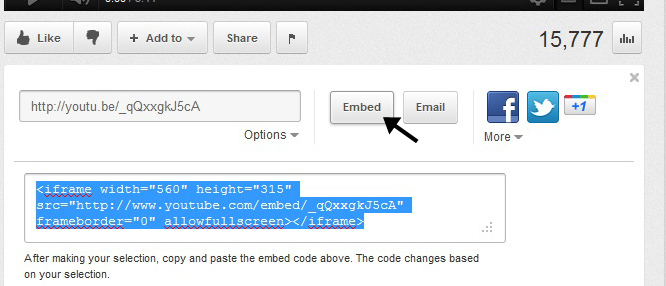
2. Click "Share" button,


3. Click "Embed" and copy the embed code.


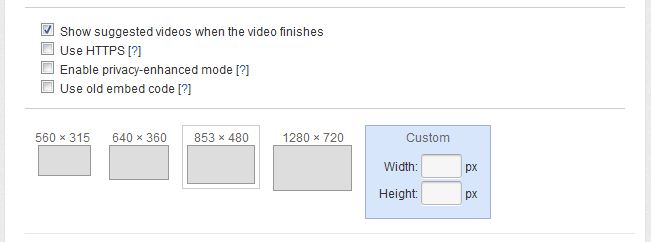
- You also can customize video width and height before you copy the embed code.


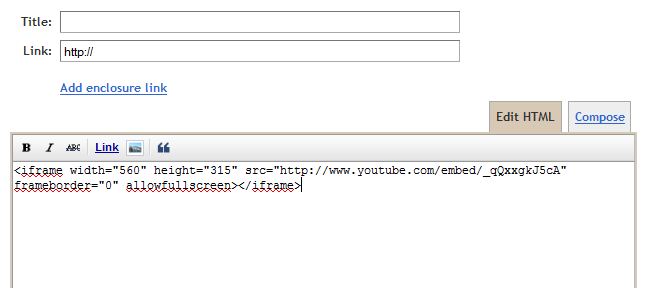
4. Then, go to your post editor area. In Edit HTML section, paste the embed code in. Then go back to Compose section.


5. That's it. Finish!

Now, you can embed any of your favorite video in your blog. Hope you love it! :)

Tuesday, February 1, 2011

How To Embed Youtube Subscribe Widget on Blog

Everybody knows how Youtube works and it become the most popular place to search any video. Do you? So, HOW-TO HOUSE will guide how to embed Youtube Subscribe Widget on your blog. It's simple and easy. You can add the widget in just 3 steps :

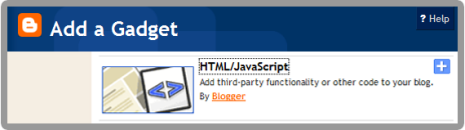
1. Go to your Dashboard >> Design >> Page Element >> Add a Gadget.


2. Copy and paste this code below in it :
<iframe src=http://www.youtube.com/subscribe_widget?p=YOUR CHANNEL NAME style="overflow: hidden; height: 105px; width: 300px; border: 0;" scrolling="no" frameBorder="0"></iframe>
3. Save and DONE!


Customization

You can change the height & width edit the code in red.

And, the widget will look something like this.

Friday, December 17, 2010

Hack To Play Youtube Video at a Spesific time

When you wanna watch Youtube, some video you want to skip it until to the specific time. So, you can use this simple URL hack to do it. Just add a parameter at the end of the link, to indicate the minutes and seconds from which to start playing. This is the hack :

1. Go to any Youtube video you want to watch.

2. Just use this URL code hack :

#t=(minute value)m(second value)s.

3. If you want the video to start at 2 minutes 05 second. Simply put this URL code after the Youtube video URL.

#t=02m05s.


Now, you can try it. Nice trick!

Sunday, December 12, 2010

How To Embed Youtube Video in Facebook Fan Page


This tutorial will teach you how to add Youtube video in your Facebook Fan Page. Now you can add your own video, product, your favorite music band, and many more to your Facebook fan page. If you want to do so, just follow this simple hack using Static FBML.

So, let's get start :

1. Login into your Facebook Account.

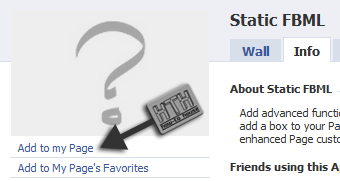
2. Go to static FBML then, "Like" static FBML in Facebook.

3.  Click at Add to my page.


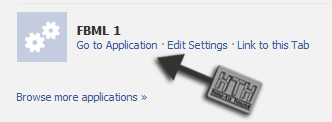
4. After you’ve added FBML application. Go “Edit Page” again > Application > FBML


5. Rename your FBML with your own desired title. And Put FBML code below, in it. [screenshot].
<fb:swf
swfbgcolor="000000" imgstyle="border-width:5px; border-color:white;" swfsrc='http://www.youtube.com/v/YOUTUBE VIDEO UNIQUE CODE&autoplay=1'
imgsrc='http://img.youtube.com/vi/YOUTUBE VIDEO UNIQUE CODE/0.jpg' width='480' height='360' />

You can customize the height and width by edit this code : width='480' height='360

Each Youtube video has a Unique Code. Don't know where to find Youtube Video Unique Code? Easy. Look screenshot below.


6. Save it. DONE!


It will looks like this,


Adding Youtube Playlist instead of single video.

You just need to change this bold code below :
<fb:swf
swfbgcolor="000000" imgstyle="border-width:5px; border-color:white;" swfsrc='http://www.youtube.com/v/YOUTUBE VIDEO UNIQUE CODE&autoplay=1'
imgsrc='http://img.youtube.com/vi/YOUTUBE VIDEO UNIQUE CODE/0.jpg' width='480' height='360' />
Change it to :
swfsrc='http://www.youtube.com/cp/YOUR PLAYLIST UNIQUE CODE'

DONE!

[?] Drop your comment for any question.


Followers

Sponsor

 
Powered by Blogger.