Thursday, September 22, 2011

How To Create jQuery Content Slider in Blogger

Do you know what is content slider? It's like a slideshow. You can watch the demo.


Like it? Let's add it.

Steps:
1. Go to your Dashboard >> Design >> Edit HTML >> Check Expand Widget Templates.

2. Search this code (Ctrl + F), ]]></b:skin>

3. Copy below code and paste it just before the ]]></b:skin> tag.
#contentSlide {
border: 1px solid #000;
background:#212421;
height:263px;
padding:10px 0;
}
#slideshow {
margin:0 auto;
width:640px;
height:263px;
background:transparent url(http://lh6.ggpht.com/_dfnTVAxeWMI/SlTPJpS_axI/AAAAAAAABYA/JS60KVWJ9GQ/bg_slideshow.jpg) no-repeat 0 0;
position:relative;
}
#slideshow #slidesContainer {
margin:0 auto;
width:560px;
height:263px;
overflow:auto; /* allow scrollbar */
position:relative;
}
#slideshow #slidesContainer .slide {
margin:0 auto;
width:540px; /* reduce by 20 pixels of #slidesContainer to avoid horizontal scroll */
height:263px;
}
.control {
display:block;
width:39px;
height:263px;
text-indent:-10000px;
position:absolute;
cursor: pointer;
}
#leftControl {
top:0;
left:0;
background:transparent url(http://lh6.ggpht.com/_dfnTVAxeWMI/SlT8KH99FgI/AAAAAAAABZM/e9gXvHjzltU/control_left.jpg) no-repeat 0 0;
}
#rightControl {
top:0;
right:0;
background:transparent url(http://lh6.ggpht.com/_dfnTVAxeWMI/SlT8KMpFpxI/AAAAAAAABZQ/a207Rx0XuiU/control_right.jpg) no-repeat 0 0;
}

.slide h2, .slide p {
margin:15px;
}
.slide h2 {
font:italic 24px Georgia, "Times New Roman", Times, serif;
color:#212421;
letter-spacing:-1px;
}
.slide img {
float:right;
margin:0 15px;
padding: 1px;
background-color: #212421;
border: 1px solid #999;
}

4.  Now, search this code (Ctrl + F), </head>

5.  Copy below code and paste it just before the </head> tag.
<script src='http://ajax.googleapis.com/ajax/libs/jquery/1.3.2/jquery.min.js' type='text/javascript'/>

<script type='text/javascript'>
//<![CDATA[
$(document).ready(function(){var currentPosition=0;var slideWidth=560;var slides=$('.slide');var numberOfSlides=slides.length;$('#slidesContainer').css('overflow','hidden');slides.wrapAll('<div id="slideInner"></div>').css({'float':'left','width':slideWidth});$('#slideInner').css('width',slideWidth*numberOfSlides);$('#slideshow').prepend('<span class="control" id="leftControl">Clicking moves left</span>').append('<span class="control" id="rightControl">Clicking moves right</span>');manageControls(currentPosition);$('.control').bind('click',function(){currentPosition=($(this).attr('id')=='rightControl')?currentPosition 1:currentPosition-1;manageControls(currentPosition);$('#slideInner').animate({'marginLeft':slideWidth*(-currentPosition)})});function manageControls(position){if(position==0){$('#leftControl').hide()}else{$('#leftControl').show()}if(position==numberOfSlides-1){$('#rightControl').hide()}else{$('#rightControl').show()}}
});
//]]>

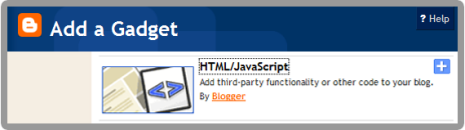
6. Save your template. Now go to your Dashboard >> Design >> Page Element >> Add a Gadget >> 'HTML/Javascript'.

7.  Add the code below;
<!-- Slideshow HTML START-->
<div id="contentSlide"><div id="slideshow">
<div id="slidesContainer">

<div class="slide">
<h2>CONTENT TITLE</h2>
<p><a href="POST URL"><img alt="" width="215" src="IMAGE URL" height="145"/></a>POST SUMMARY</p>
</div>

<div class="slide">
<h2>CONTENT TITLE</h2>
<p><a href="POST URL"><img alt="" width="215" src="IMAGE URL" height="145"/></a>POST SUMMARY</p>
</div>

<div class="slide">
<h2>CONTENT TITLE</h2>
<p><a href="POST URL"><img alt="" width="215" src="IMAGE URL" height="145"/></a>POST SUMMARY</p>
</div>

<div class="slide">
<h2>CONTENT TITLE</h2>
<p><a href="POST URL"><img alt="" width="215" src="IMAGE URL" height="145"/></a>POST SUMMARY</p>
</div>

<div class="slide">
<h2>CONTENT TITLE</h2>
<p><a href="POST URL"><img alt="" width="215" src="IMAGE URL" height="145"/></a>POST SUMMARY</p>
</div>

</div>
</div></div>
<!-- Slideshow HTML END -->

8.  To add new slideshow, just add this code;
<div class="slide">
<h2>CONTENT TITLE</h2>
<p><a href="POST URL"><img alt="" width="215" src="IMAGE URL" height="145"/></a>POST SUMMARY</p>
</div>

DONE!

Saturday, September 17, 2011

Blogger Released Official Lightbox Image Viewer System

Do not need to use any hack code to magnify the image on blogger blog anymore. Now Blogger.com has provided the official Lightbox image viewer system. You can take a look at your blog. Just click on the image on your entry post, then it will magnify itself and there is also has image thumbnail under the preview image to select which image you want to look at.


Just click on the [x] button at the right top corner or just click on the dark area to back to normal.

Interesting!

You also can disable this feature - tutorial here.

Thursday, September 15, 2011

How To Add Colorful Effect For Your Links For Blogger


Let's add some fun to your blog by adding cool effect to your links when your visitors hover it. It’ll be lighting and colorful. It's easy and let's do it.


Steps:
1. Go to your Dashboard >> Design >> Page Element >> Add a Gadget.


2. Paste this code below inside :
<script type='text/javascript'>

 //<![CDATA[

 var rate = 25;

 if (document.getElementById)
  window.onerror=new Function("return true")

 var objActive;  // The object which event occured in
  var act = 0;    // Flag during the action
  var elmH = 0;   // Hue
  var elmS = 128; // Saturation
  var elmV = 255; // Value
  var clrOrg;     // A color before the change
  var TimerID;    // Timer ID

 if (document.all) {
  document.onmouseover = doRainbowAnchor;
  document.onmouseout = stopRainbowAnchor;
  }
  else if (document.getElementById) {
  document.captureEvents(Event.MOUSEOVER | Event.MOUSEOUT);
  document.onmouseover = Mozilla_doRainbowAnchor;
  document.onmouseout = Mozilla_stopRainbowAnchor;
  }

 function doRainbow(obj)
  {
  if (act == 0) {
  act = 1;
  if (obj)
  objActive = obj;
  else
  objActive = event.srcElement;
  clrOrg = objActive.style.color;
  TimerID = setInterval("ChangeColor()",100);
  }
  }


 function stopRainbow()
  {
  if (act) {
  objActive.style.color = clrOrg;
  clearInterval(TimerID);
  act = 0;
  }
  }


 function doRainbowAnchor()
  {
  if (act == 0) {
  var obj = event.srcElement;
  while (obj.tagName != 'A' && obj.tagName != 'BODY') {
  obj = obj.parentElement;
  if (obj.tagName == 'A' || obj.tagName == 'BODY')
  break;
  }

 if (obj.tagName == 'A' && obj.href != '') {
  objActive = obj;
  act = 1;
  clrOrg = objActive.style.color;
  TimerID = setInterval("ChangeColor()",100);
  }
  }
  }


 function stopRainbowAnchor()
  {
  if (act) {
  if (objActive.tagName == 'A') {
  objActive.style.color = clrOrg;
  clearInterval(TimerID);
  act = 0;
  }
  }
  }


 function Mozilla_doRainbowAnchor(e)
  {
  if (act == 0) {
  obj = e.target;
  while (obj.nodeName != 'A' && obj.nodeName != 'BODY') {
  obj = obj.parentNode;
  if (obj.nodeName == 'A' || obj.nodeName == 'BODY')
  break;
  }

 if (obj.nodeName == 'A' && obj.href != '') {
  objActive = obj;
  act = 1;
  clrOrg = obj.style.color;
  TimerID = setInterval("ChangeColor()",100);
  }
  }
  }


 function Mozilla_stopRainbowAnchor(e)
  {
  if (act) {
  if (objActive.nodeName == 'A') {
  objActive.style.color = clrOrg;
  clearInterval(TimerID);
  act = 0;
  }
  }
  }


 function ChangeColor()
  {
  objActive.style.color = makeColor();
  }


 function makeColor()
  {
  // Don't you think Color Gamut to look like Rainbow?

 // HSVtoRGB
  if (elmS == 0) {
  elmR = elmV;    elmG = elmV;    elmB = elmV;
  }
  else {
  t1 = elmV;
  t2 = (255 - elmS) * elmV / 255;
  t3 = elmH % 60;
  t3 = (t1 - t2) * t3 / 60;

 if (elmH < 60) {
  elmR = t1;  elmB = t2;  elmG = t2   t3;
  }
  else if (elmH < 120) {
  elmG = t1;  elmB = t2;  elmR = t1 - t3;
  }
  else if (elmH < 180) {
  elmG = t1;  elmR = t2;  elmB = t2   t3;
  }
  else if (elmH < 240) {
  elmB = t1;  elmR = t2;  elmG = t1 - t3;
  }
  else if (elmH < 300) {
  elmB = t1;  elmG = t2;  elmR = t2   t3;
  }
  else if (elmH < 360) {
  elmR = t1;  elmG = t2;  elmB = t1 - t3;
  }
  else {
  elmR = 0;   elmG = 0;   elmB = 0;
  }
  }

 elmR = Math.floor(elmR).toString(16);
  elmG = Math.floor(elmG).toString(16);
  elmB = Math.floor(elmB).toString(16);
  if (elmR.length == 1)    elmR = "0"   elmR;
  if (elmG.length == 1)    elmG = "0"   elmG;
  if (elmB.length == 1)    elmB = "0"   elmB;

 elmH = elmH   rate;
  if (elmH >= 360)
  elmH = 0;

 return '#'   elmR   elmG   elmB;
  }

 //]]>

 </script>

3. Save it. Done!
You can change;
var rate = 25;
The code is to control the speed of color transformation by increasing or decreasing the number.

Cheers! 

Wednesday, September 14, 2011

How To Add Page Navigation to Blogger

Page navigation script will replaces the default blog pager (links to newer, older and home pages) with numbered page navigation. Furthermore, it offers the ability to customize the number of page links and the number of posts displayed on each page. It gives you more easy to discover your old entry. Let's know how.
Steps:
1. Go to your Dashboard >> Design >> Page Element >> Add a Gadget.


2. Paste this code below inside :
     <style type="text/CSS">

    .showpageArea a {
    text-decoration:underline;
    }
    .showpageNum a {
    text-decoration:none;
    border: 1px solid #7AA1C3;
    margin:0 3px;
    padding:3px;
    }
    .showpageNum a:hover {
    border: 1px solid #7AA1C3;
    background-color:#F6F6F6;
    }
    .showpagePoint {
    color:#333;
    text-decoration:none;
    border: 1px solid #7AA1C3;
    background: #F6F6F6;
    margin:0 3px;
    padding:3px;
    }
    .showpageOf {
    text-decoration:none;
    padding:3px;
    margin: 0 3px 0 0;
    }
    .showpage a {
    text-decoration:none;
    border: 1px solid #7AA1C3;
    padding:3px;
    }
    .showpage a:hover {
    text-decoration:none;
    }
    .showpageNum a:link,.showpage a:link {
    text-decoration:none;
    color:#7AA1C3;
    }
    </style>

    <script type="text/JavaScript">

    function showpageCount(json) {
    var thisUrl = location.href;
    var htmlMap = new Array();
    var isFirstPage = thisUrl.substring(thisUrl.length-5,thisUrl.length)==".com/";
    var isLablePage = thisUrl.indexOf("/search/label/")!=-1;
    var isPage = thisUrl.indexOf("/search?updated")!=-1;
    var thisLable = isLablePage ? thisUrl.substr(thisUrl.indexOf("/search/label/") 14,thisUrl.length) : "";
    thisLable = thisLable.indexOf("?")!=-1 ? thisLable.substr(0,thisLable.indexOf("?")) : thisLable;
    var thisNum = 1;
    var postNum=1;
    var itemCount = 0;
    var fFlag = 0;
    var eFlag = 0;
    var html= '';
    var upPageHtml ='';
    var downPageHtml ='';

    var pageCount = 2;
    var displayPageNum = 5;
    var upPageWord = 'Previous';
    var downPageWord = 'Next';

    var labelHtml = '<span class="showpageNum"><a href="/search/label/' thisLable '?&max-results=' pageCount '">';

    for(var i=0, post; post = json.feed.entry[i]; i  ) {
    var timestamp = post.published.$t.substr(0,10);
    var title = post.title.$t;
    if(isLablePage){
    if(title!=''){
    if(post.category){
    for(var c=0, post_category; post_category = post.category[c]; c  ) {
    if(encodeURIComponent(post_category.term)==thisLable){
    if(itemCount==0 || (itemCount % pageCount ==(pageCount-1))){
    if(thisUrl.indexOf(timestamp)!=-1 ){
    thisNum = postNum;
    }

    postNum  ;
    htmlMap[htmlMap.length] = '/search/label/' thisLable '?updated-max=' timestamp 'T00%3A00%3A00%2B08%3A00&max-results=' pageCount;
    }
    }
    }
    }//end if(post.category){

    itemCount  ;
    }

    }else{
    if(title!=''){
    if(itemCount==0 || (itemCount % pageCount ==(pageCount-1))){
    if(thisUrl.indexOf(timestamp)!=-1 ){
    thisNum = postNum;
    }

    if(title!='') postNum  ;
    htmlMap[htmlMap.length] = '/search?updated-max=' timestamp 'T00%3A00%3A00%2B08%3A00&max-results=' pageCount;
    }
    }
    itemCount  ;
    }
    }

    for(var p =0;p< htmlMap.length;p  ){
    if(p>=(thisNum-displayPageNum-1) && p<(thisNum displayPageNum)){
    if(fFlag ==0 && p == thisNum-2){
    if(thisNum==2){
    if(isLablePage){
    upPageHtml = labelHtml   upPageWord  '</a></span>';
    }else{
    upPageHtml = '<span class="showpage"><a href="/">'  upPageWord  '</a></span>';
    }
    }else{
    upPageHtml = '<span class="showpage"><a href="' htmlMap[p] '">'  upPageWord  '</a></span>';
    }

    fFlag  ;
    }

    if(p==(thisNum-1)){
    html  = '<span class="showpagePoint">' thisNum '</span>';
    }else{
    if(p==0){
    if(isLablePage){
    html = labelHtml '1</a></span>';
    }else{
    html  = '<span class="showpageNum"><a href="/">1</a></span>';
    }
    }else{
    html  = '<span class="showpageNum"><a href="' htmlMap[p] '">'  (p 1)  '</a></span>';
    }
    }

    if(eFlag ==0 && p == thisNum){
    downPageHtml = '<span class="showpage"> <a href="' htmlMap[p] '">'  downPageWord  '</a></span>';
    eFlag  ;
    }
    }//end if(p>=(thisNum-displayPageNum-1) && p<(thisNum displayPageNum)){
    }//end for(var p =0;p< htmlMap.length;p  ){

    if(thisNum>1){
    if(!isLablePage){
    html = '' upPageHtml ' ' html  ' ';
    }else{
    html = '' upPageHtml ' ' html  ' ';
    }
    }

    html = '<div class="showpageArea"><span style="COLOR: #000;" class="showpageOf"> Pages (' (postNum-1) ')</span>' html;

    if(thisNum<(postNum-1)){
    html  = downPageHtml;

    }

    if(postNum==1) postNum  ;
    html  = '</div>';

    if(isPage || isFirstPage || isLablePage){
    var pageArea = document.getElementsByName("pageArea");
    var blogPager = document.getElementById("blog-pager");

    if(postNum <= 2){
    html ='';
    }

    for(var p =0;p< pageArea.length;p  ){
    pageArea[p].innerHTML = html;
    }

    if(pageArea&&pageArea.length>0){
    html ='';
    }

    if(blogPager){
    blogPager.innerHTML = html;
    }
    }

    }
    </script>

    <script src="/feeds/posts/summary?alt=json-in-script&callback=showpageCount&max-results=99999" ; type="text/javascript"></script>

3. If you are using a domain other than .blogspot.com or .com, change  the bolded red text .com with your domain extension. E.g; if your domain ends with .info or .biz than replace .com with .info or .biz . If blogspot user, leave it .com.

4. Drag your HTML/Javascript widget that you've just pasted the code to the area just below your 'Blog Posts'.

5. Save and DONE!


That's it. Finish! Enjoy guys!

[resource]

Tuesday, September 13, 2011

Change Blogger Favicon More Easily

HH already made a tutorial about how to change favicon previously. Now for this tutorial, it's more easier than previous trick. Blogger already got the service for you. You only need to choose your own or create yourself. Let's know how.

Steps:
1. Go to Dashboard ->> Design ->> Page Elements ->> Favicon. Click 'Edit' button.

2. You can download a lot of favicon free on the internet. Click here

3. Upload your favicon image that you downloaded.


4. Save. Preview your favicon.

Use your own image as favicon
1. If you wanna use your own image/created icon. Blogger favicon currently supported icon format only. You need to convert it to icon format (.ico).

2. You can convert your image using iconj pic to icon converter.

3. Click "Upload" button and your own image/created icon.

4. After finish uploaded, it will look like a screenshot below. Then, click "Continue".

5. Download your converted icon. 

6. Now, upload your icon just like the above method.

7. Save & DONE!

Preview your template to see the result. 


Here are a quick guideline to know the icon format in each platform.
Website Favicon: 16x16 pixels and ICO format is the standard. However, newer browsers also support other GIF, PNG and JPG formats.
Animated Favicon: animated GIF upload is must, and the export format should be 16x16 pixels GIF file.
Windows XP: 16x16, 24x24, 32x32 and 48x48 pixels icon in ICO file format.
Windows 7, Vista: up to 256x256 pixels PNG icon.
iPhone: 57x57 pixels PNG icon. iPhone itself automatically rounds off the corners and adds a slight glassy reflection on the icon image.
iPad: 72x72 pixels PNG icon.
Android: 72x72, 48x48 and 36x36 pixels PNG icons used by the Android Market and the launchers.

Enjoy!


Followers

Sponsor

 
Powered by Blogger.