Thursday, November 10, 2011

How To Add Scroll For Blog Archive in Blogger

Salam.

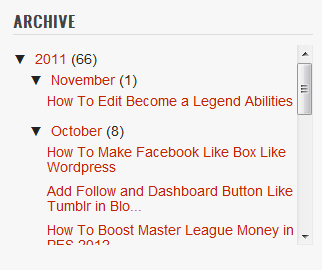
Your blog archive is too damn long to the bottom? Do you wanna add a scroll to your blog? Yes, you just to do this few steps to make your blog archive looks like this.

STEPS:
1. Go to your Dashboard >> Design >> Edit HTML >> Check Expand Widget Templates.

2. Search this code (Ctrl + F), ]]></b:skin>

3. Put this code below, after ]]></b:skin>
#BlogArchive1 .widget-content{
height:300px;
width:auto;
overflow:auto;
}

4. You can change the scroll height by edit the code in red:

5. Save. Refresh to see the result.


+ For more tutorial, just see through the labels.

Tuesday, October 25, 2011

How To Make Facebook Like Box Like Wordpress

Wanna have Facebook Like Box like this? Just like in Wordpress. Watch DEMO [click]


You only need to follow this few steps. Let's start.

INSTRUCTION:
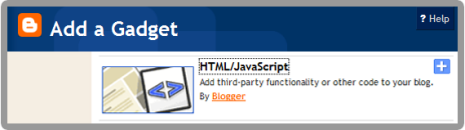
1. Go to your Dashboard >> Design >> Page Element >> Add a Gadget.


2. Paste this code in.
<center>
<iframe frameborder="0" href="%0A%0AYOUR FAN PAGE URL%0A%0A" scrolling="no" src="http://www.facebook.com/plugins/fan.php?id=%0A%YOUR FAN PAGE ID%0A%0A&amp;width=292&amp;height=250&amp;connections=25&amp;stream=false&amp;header=false&amp;logobar=false&amp;css=http://howtohouse.googlecode.com/files/fblike.css" style="height: 230px; width: 85%;"></iframe>
<iframe allowtransparency="true" frameborder="0" scrolling="no" src="http://www.facebook.com/plugins/like.php?href=%0A%0AYOUR FAN PAGE URL%0A%0A&amp;send=false&amp;layout=standard&amp;width=292&amp;show_faces=false&amp;action=like&amp;colorscheme=light&amp;font&amp;height=40" style="border: none; height: 40px; overflow: hidden; width: 250px;"></iframe></center>
3. Change:
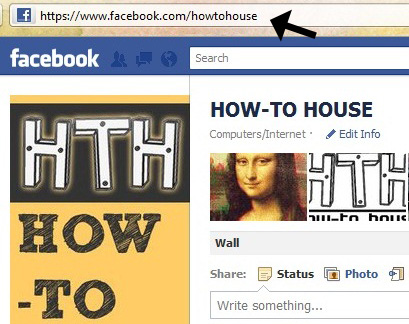
YOUR FAN PAGE URL- Where to find? Just go to your fan page. Copy URL in the URL bar.


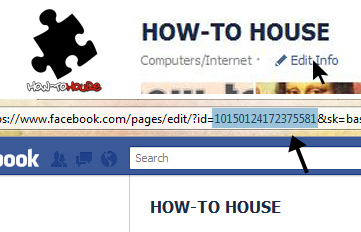
YOUR FAN PAGE ID - On your fan page, click on the Edit Info and copy the ID from the URL bar.


4. Save and FINISH!

Do you like it? ENJOY!

Add Follow and Dashboard Button Like Tumblr in Blogger

Do you like a follow and dashboard button just like in Tumblr? It's look like this;


Live DEMO [click]. Isn't its nice. Let's add it to your blog/site.

STEPS
1. Go to your Dashboard >> Design >> Page Element >> Add a Gadget.


2. Paste this code in.
<div style="display:scroll; position:fixed; top:5px; right:95px;"><a class="linkopacity" href="http://www.blogger.com/follow-blog.g?blogID=YOUR BLOG ID" target="_blank" rel="nofollow" title="Follow" imageanchor="1" style="margin-left: 1em; margin-right: 1em;"><img border="0" src="http://assets.tumblr.com/images/iframe_follow_alpha.png?6" /></a> <div style="display:scroll; position:fixed; top:5px; right:2px;"><a class="linkopacity" href="http://blogger.com/home" target="_blank" rel="nofollow" title="Dashboard" imageanchor="1" style="margin-left: 1em; margin-right: 1em;"><img border="0" src="http://assets.tumblr.com/images/iframe_dashboard_alpha.png?6" /></a></div></div>
3. Change the YOUR BLOG ID with your Blogger. Where to find the ID?

    • Go to Dashboard ->> Design ->> Look at your URL bar.


4. Save and finish.

Enjoy new Tumblr style button.

Sunday, October 16, 2011

How To Disable Image Lightbox in Blogger

Blogger previously has officially launched a lightbox image viewer in Blogger. I had wrote about it in the previous entry. For further info, click here.

But some of the user seems don't like to use it. Want to disable it? Let's know how.

Steps
Log in to Blogger -> Settings | Posts and Comments section (new interface) or the Settings | Formatting section (old interface).

Select “No” next to Lightbox.

• Finish!

Hope you like it!

Spread this entry if you think it's helpful.

Wednesday, October 12, 2011

How To Create Your Own Clock and Add in Blogger

You wanna add some widget like clock. You can do it so. It is good to have a clock in your blog. Time is always important. You can create your own clock and add it into your blog. Let's know how yo.
Let's get started

• Just go this site - click here

• Then, just select between listbox options.

• Customize colors with color pickers.

• Set your clock size with zoom slide.

• Hit the Download button.

• Copy the code and paste in HTML/Javascript

• Finish!

Place the clock on your desire position. Enjoy!


Followers

Sponsor

 
Powered by Blogger.